
Notifications send emails after a valid public submission is accepted. A form can have multiple notifications, each with its own recipients, content and conditions. Core includes this workflow; Pro is not required for basic email notifications.
Open the Notifications editor
Go to the form's Settings → Notifications. New forms include an enabled Admin notification addressed to {admin_email}, which uses the current site's WordPress administrator address. Review it before collecting real enquiries.
Select an existing notification or + Add notification. Give it a recognizable name, choose its enabled state and configure the following sections. Duplicating a notification opens a disabled draft; save and enable it deliberately.
Recipients and sender
| Setting | What it does |
|---|---|
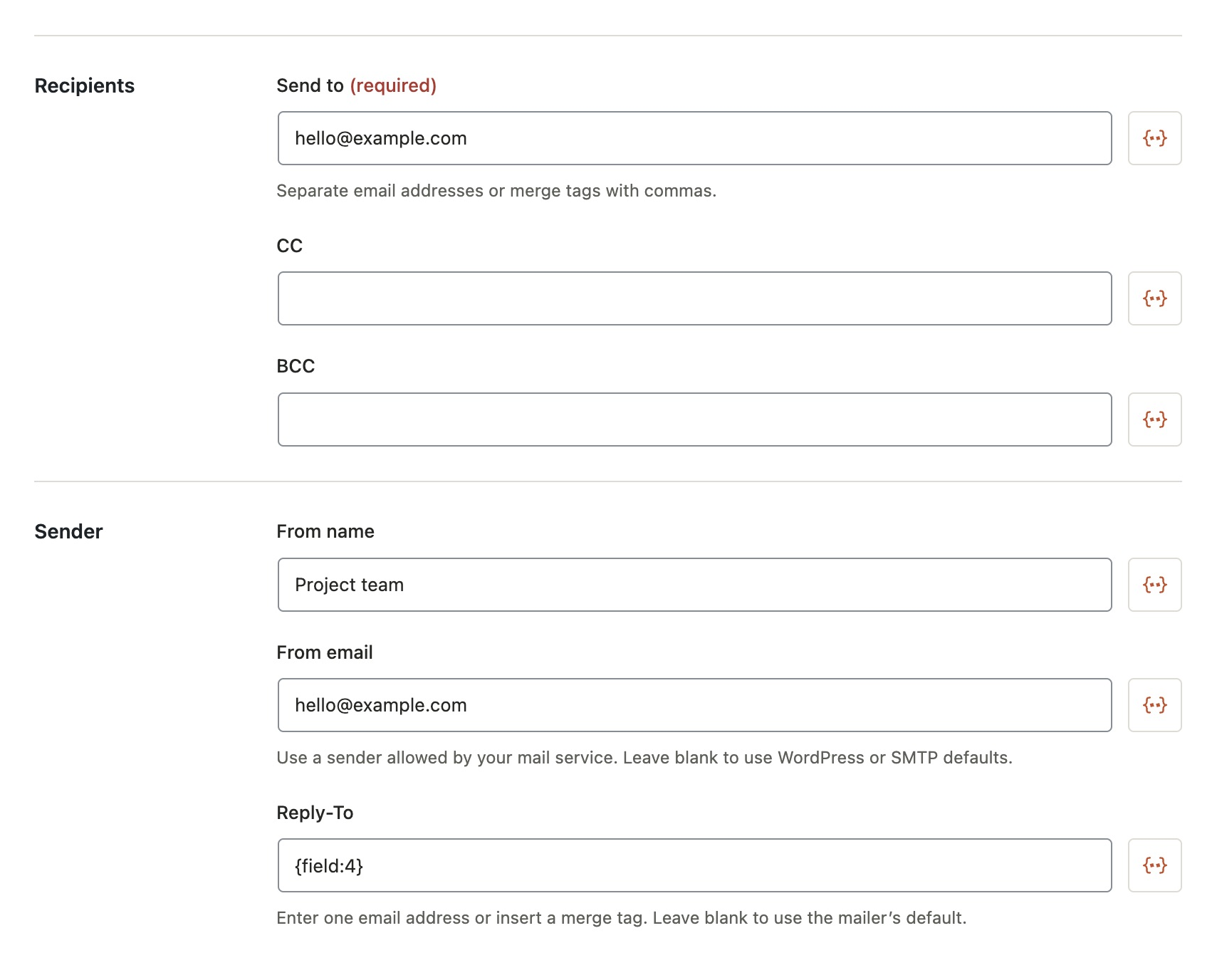
| Send to | Required address or comma-separated addresses/merge tags. For an admin alert, use an inbox you monitor. For a visitor receipt, choose the form's Email field tag. |
| CC / BCC | Optional additional recipients, separated by commas. BCC recipients are not shown to the other recipients. |
| From name | Optional sender name. Blank leaves it to WordPress or the mail transport. |
| From email | Use an address permitted by your mail service. Blank uses the normal WordPress/SMTP default. |
| Reply-To | Optional single address or field tag. Put the visitor's email here when replies to an admin alert should reach that visitor. |
A variable recipient must resolve to a valid address when the submission is accepted. Making a visitor Email field optional can leave its receipt notification with no recipient. Other valid notifications and the saved entry are independent of that failure.
Subject, message and attachments
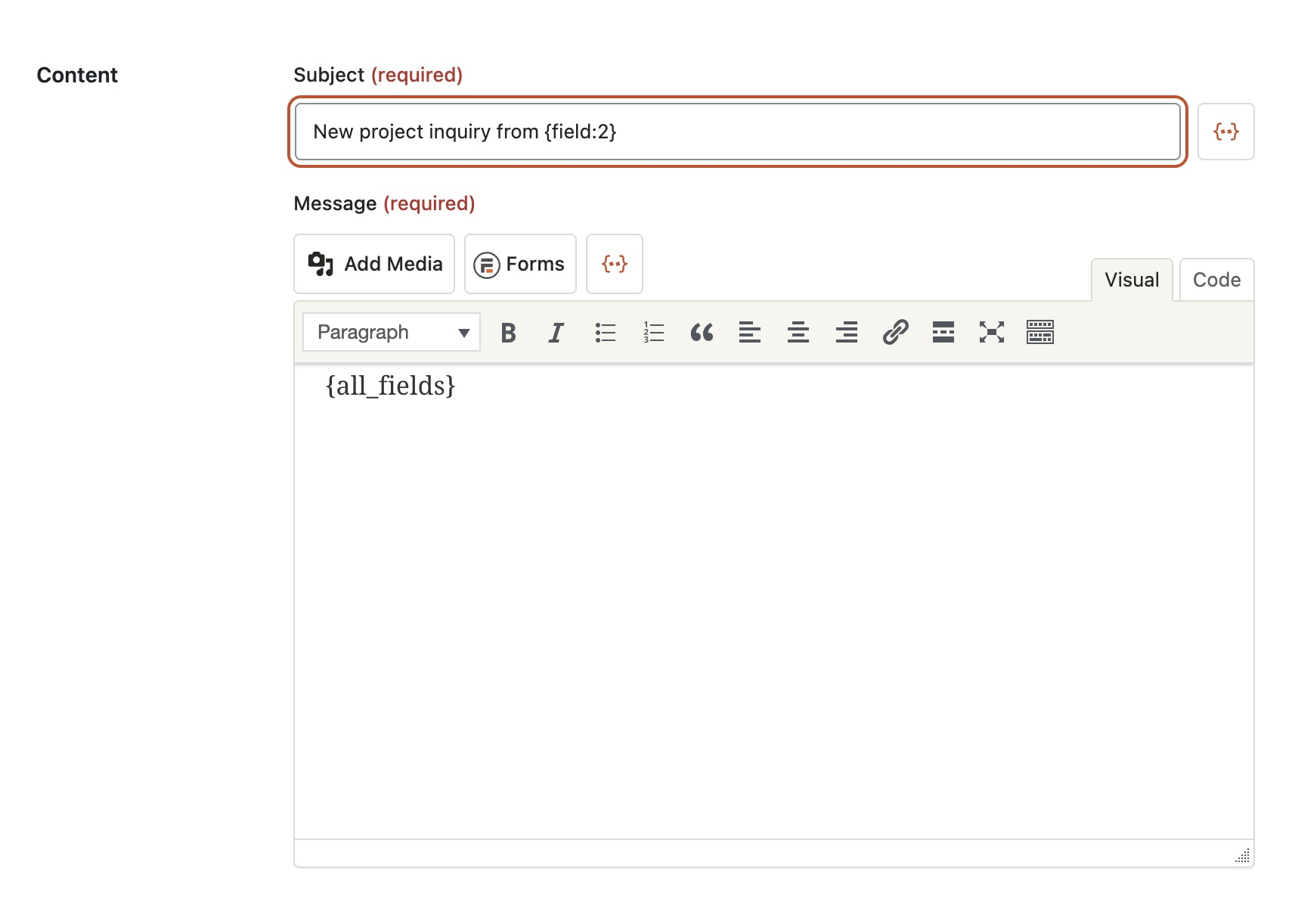
Use Subject for the email subject and the Visual/Code Message editor for its body. The default subject is New submission: {form_title}; the default message uses {all_fields}. Insert supported tags with the picker rather than guessing a field ID.
The all-fields summary uses readable field labels and formatted values. Internal fields are excluded from that automatic summary. An explicit field tag can deliberately include an Internal value, so review the final message for its intended audience.
When suitable File Upload fields exist, Attachments lets you choose which fields supply files for this notification. Selection is independent for each email and starts empty. Each email can include up to 50 files and 10 MB total; missing, unavailable or over-limit files are skipped.
Choose when it sends
Conditional notification rules require Pro. Core provides ordinary enabled notifications. If Pro is inactive, saved conditional notifications do not match their predicates; their configuration is retained for when the provider is restored.
An enabled notification without conditions applies to all accepted submissions. Use All/Any conditions to send it only for matching answers. Each enabled notification is evaluated independently, so several can send from one entry. Order does not select only one as it does for confirmations.
A nonmatching notification records a skipped result. Saving its configuration or editing an entry does not send a new email. A deliberate Resend is a separate operation.
Sending and testing
The site-wide Email sending mode controls background versus during-submission execution. Logical Forms uses WordPress mail; configure the website's mail transport as needed. Acceptance by the mailer is not proof of inbox delivery.
Test using addresses you control. Check the entry and its notification status, then the recipient's inbox and spam folder. Automatic notifications addressed through variable recipient values are rate-limited: by default, three per destination address across the site and sixty per form in a UTC clock hour. Fixed-recipient admin alerts are handled separately. Repeated testing can reach those limits.