
Find the entry first. A validation failure creates no accepted entry and should not trigger the ordinary accepted-submission notifications. A successful confirmation does not guarantee that a message reached the destination inbox.
Check the saved notification
- Open the correct form's Notifications settings and confirm that the intended notification is enabled and saved.
- Check Send to, the recipient Email field or custom addresses, sender, Reply-To, subject and message. An optional empty recipient field cannot supply an address.
- If the feed has conditions, check the accepted answers against them. Conditional actions require Pro; a skipped condition is not a mail transport failure.
- Use an inbox you control for a single clearly labeled test. If testing an existing entry, review its recorded outcome before triggering another delivery.
See notification settings for the actual recipient and template controls. Reply-To and From have different roles; the visitor's Email field should not automatically become a trusted sending identity.
Use the entry's delivery status
| Setting | What it does |
|---|---|
| Queued / running | The entry was accepted, but the action is waiting or processing. Check background requests and cron with the host before assuming the recipient rejected it. |
| Skipped / blocked | Inspect conditions, disabled/unavailable providers or the stated reason. Changing the inbox address does not fix a condition that never matches. |
| Failed | Read the recorded error and check WordPress mail-service logs. Confirm valid recipients and the site's sending configuration. |
| Sent | The mail transport accepted the message. This does not prove inbox placement. Check spam, quarantine, recipient spelling, delivery/bounce logs and the site's sending service. |
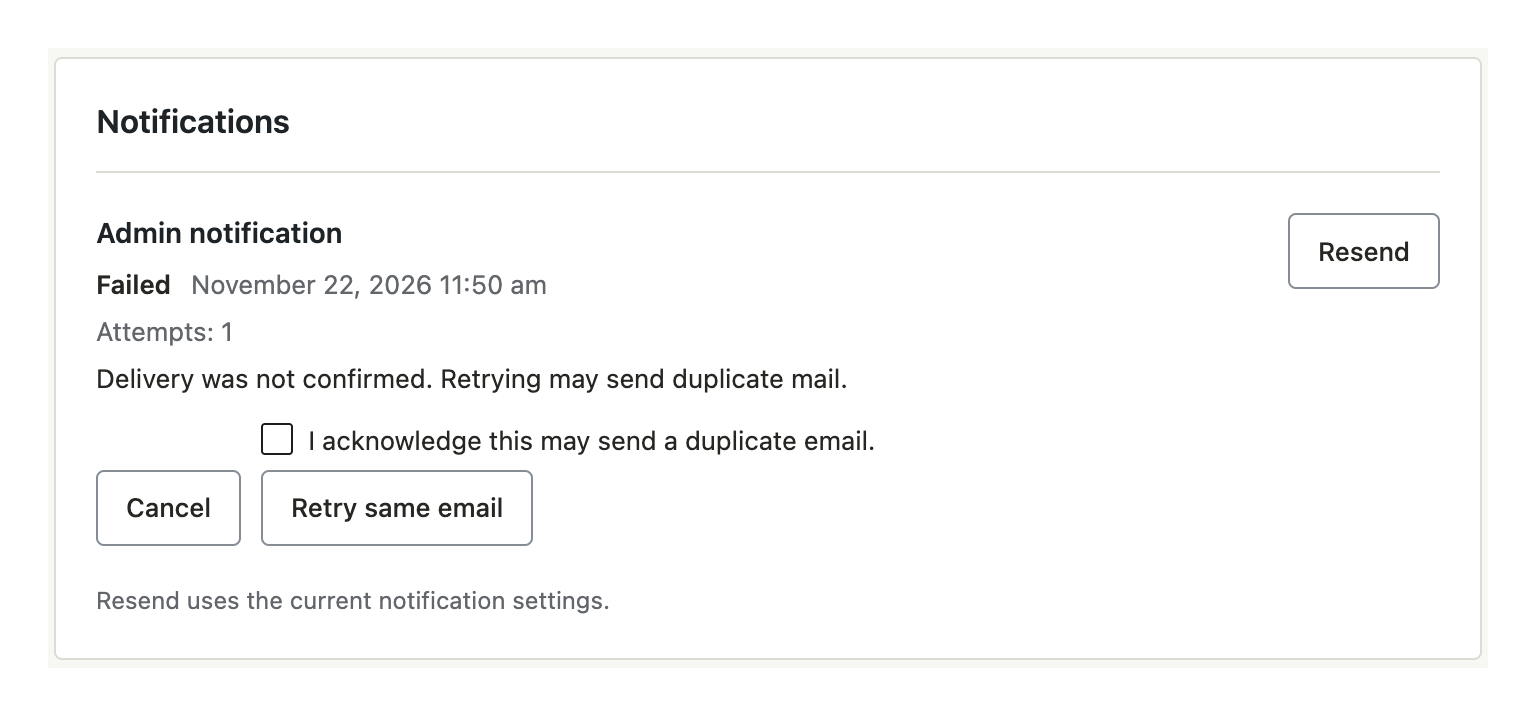
| Uncertain | The original attempt may have sent. Inspect transport logs before retrying or resending, since another delivery may duplicate it. |
Background processing and old queued work
Settings → Email offers Background or During submission. Both use WordPress mail transport; neither configures an SMTP service. A host that blocks the site's loopback requests can delay background processing.
Changing to During submission affects new work and does not drain an existing queue. Process pending actions executes a bounded batch across the site, including registered add-on actions. Review pending work before using it; it is a real execution command.
Retry versus Resend
Retry uses a retained original payload where supported. Resend is a new attempt using current configuration and answers. Availability depends on the run state and payload retention, rather than being a permanent email archive. See delivery status, Retry and Resend before acting.
Entry edits alone do not resend ordinary notifications. Repeatedly submitting the form to test mail also creates new entries and can run other integrations. Use a controlled staging form when isolating mail delivery.
Useful evidence
Keep the entry ID, notification name, run status, timestamp/timezone and sanitized mail-service result. Distinguish a mailer error from an accepted message with later delivery failure. Keep passwords, API keys, full recipient data and message bodies out of public reports.