
Core provides read/unread, Spam/Inbox, Trash and restoration controls. Use classifications to organize saved entries, and distinguish moving an entry to Trash from permanently deleting its data.
Read and unread
Opening a visible entry detail page with JavaScript marks it read through the protected management action. That entry can disappear from the Unread list while you continue browsing. Without JavaScript, use Mark read.
Mark unread leaves it unread after the action, so you can use it as a follow-up marker. Printing and exporting do not mark it read.
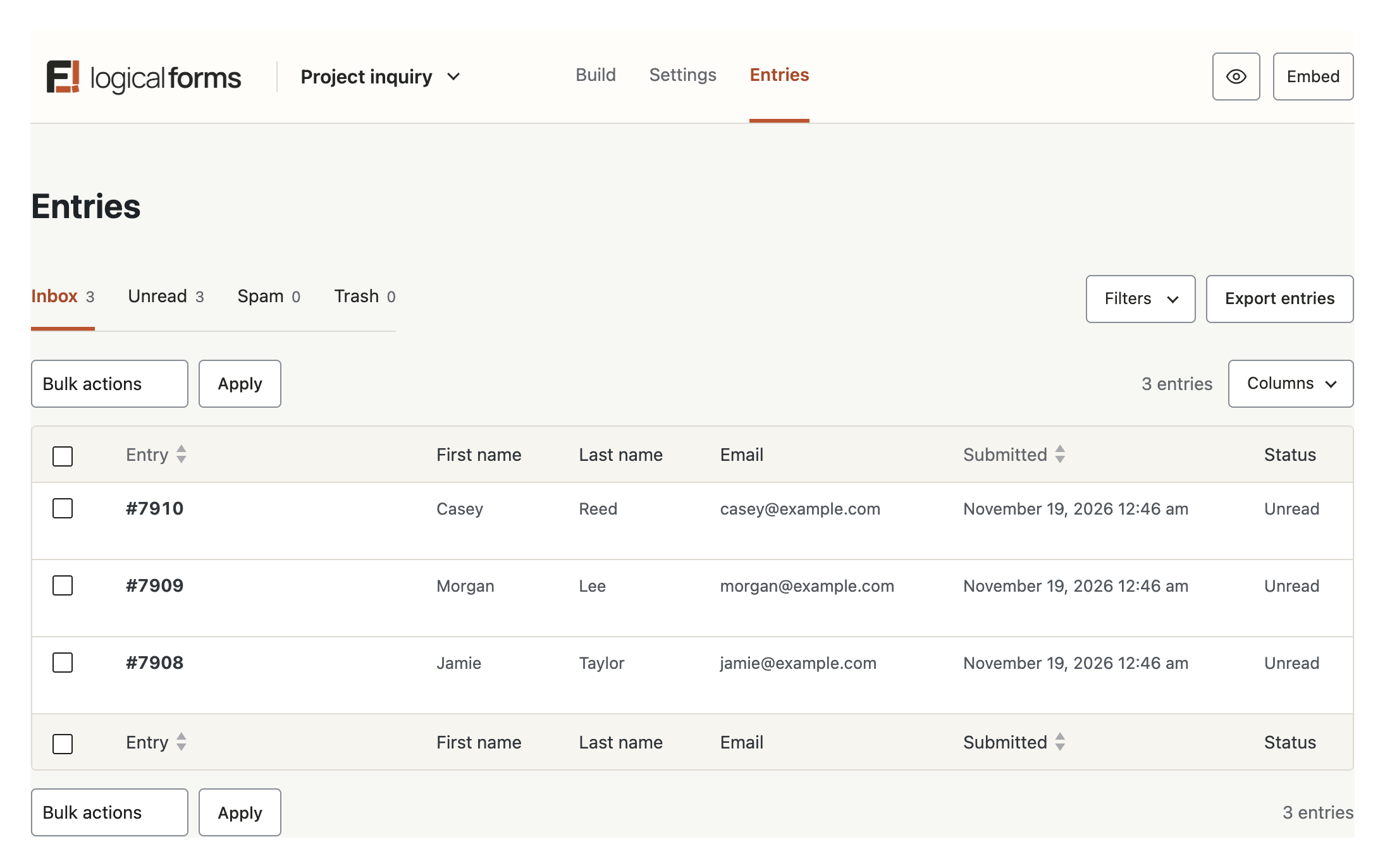
Inbox and Spam
Inbox contains accepted entries; Spam is an explicit classification for saved entries you mark as spam. Use Mark as spam or Move to inbox as appropriate. Current honeypot rejections are not automatically retained as Spam entries.
Moving an entry into Spam can cancel pending work. Returning it to accepted status does not mean an original notification is automatically replayed. Inspect its action history before any deliberate resend.
Move to Trash and restore
Trash removes the entry from the normal Inbox while retaining its answers, notes, activity and uploaded files for restoration. Use the Trash view to find it. Available restoration controls return it to Inbox or Spam.
Trashing cancels pending notifications and clears their retained sending payloads. Restoring does not restart those sends. Trashed entries are read-only until restored. Bulk controls act on explicitly selected entries, so verify the selected rows and operation before applying them.
Delete permanently
Permanent deletion cannot be undone through Logical Forms. From Trash, confirm deletion only after retaining any records you need.
Deletion removes the entry's submitted values, notes, activity, search data and notification records. The plugin cleans up owned uploads when no remaining entry references them. A failed file-removal attempt may be retried by cleanup rather than pretending the file was already removed.
Deleting a form permanently also deletes its entries and associated records. Use the form-management guide to distinguish an inactive form, a trashed form and a permanently deleted one.
Copies outside the plugin
Deletion does not remove exported CSV files, printed or PDF copies, already-sent email, files copied elsewhere or hosting backups. Include those locations in your own retention process where applicable.
Uninstalling the plugin leaves stored entries, notes, activity and uploaded files in place. If you intend to remove entry data through Logical Forms, perform the explicit permanent-deletion workflow before uninstalling rather than assuming removal of the plugin files erases submissions.
Retain data before deletion
Use CSV export for answer records or Print entry for an individual formatted copy. Confirm what each output includes: ordinary CSV and printouts do not include internal notes.