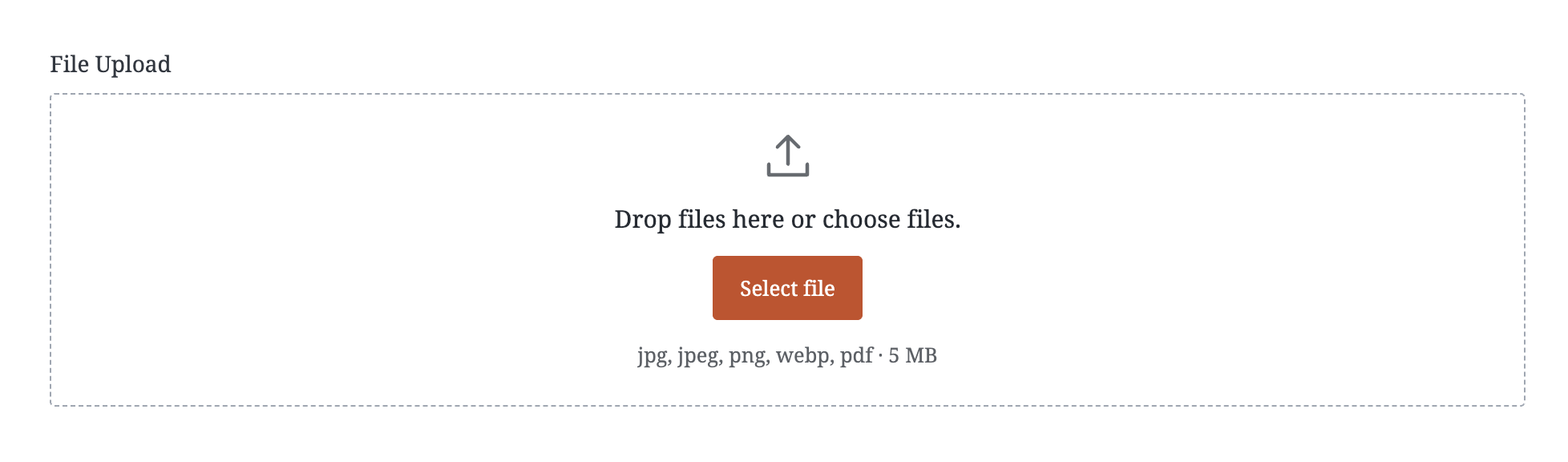
Use File Upload for documents or images submitted with an entry. The default accepts JPG, JPEG, PNG, WebP and PDF, with one file and a 5 MB per-file setting. Choose only the formats your workflow needs.
Availability: Core (Free).
Add and configure the field
- Open the form in Build and add File Upload from Add fields.
- Select its canvas card to open Field options, then configure the controls below.
- Save the form and check its saved Preview and embedded page.
Field-specific settings
| Setting | What it does |
|---|---|
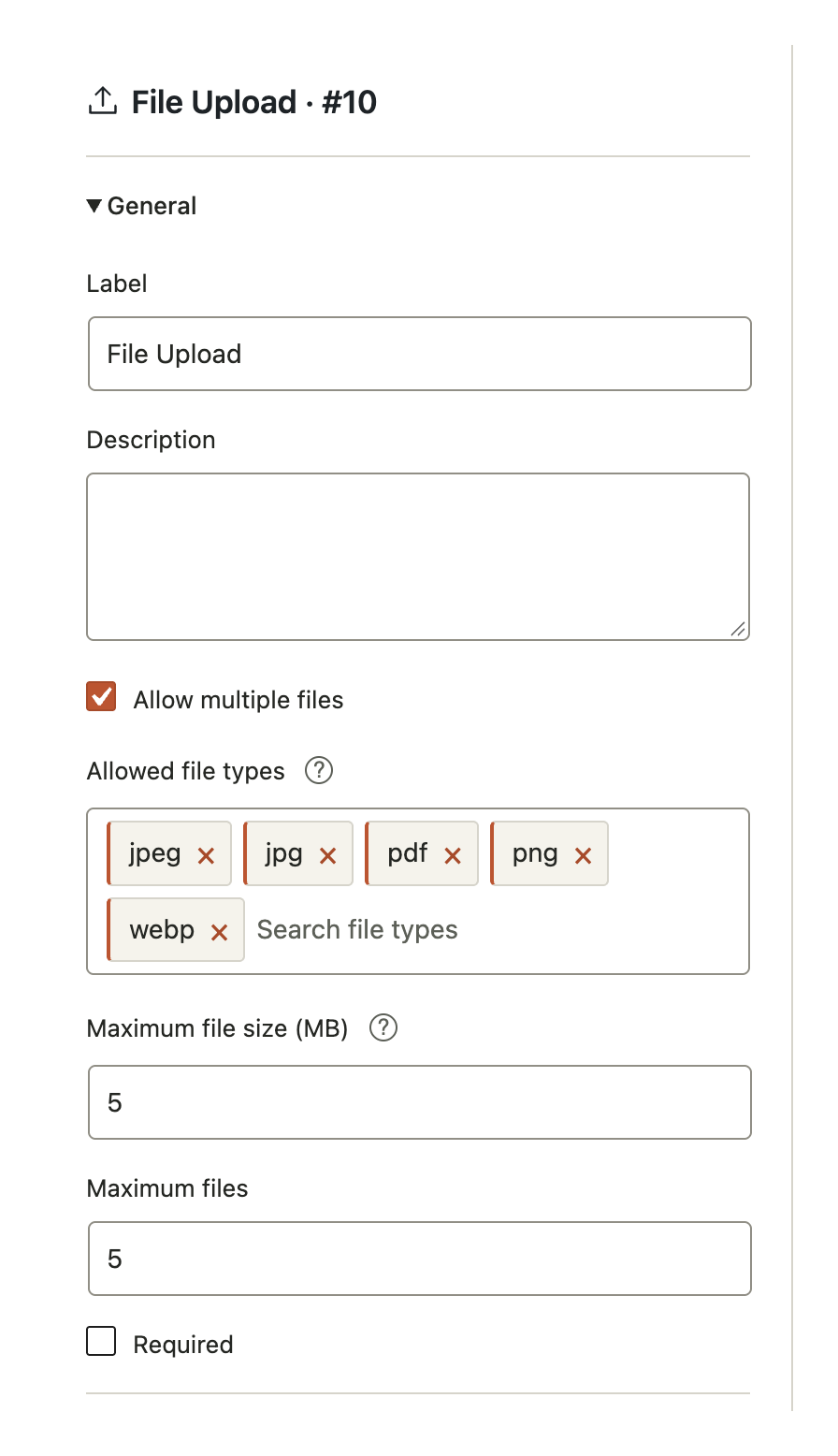
| Allow multiple files | Allow multiple files starts off; single mode accepts one file. |
| Allowed file types | Choose at least one supported Allowed file type. Extension and file validation still run on the server. |
| Maximum file size (MB) | Maximum file size (MB) is per file. The effective limit also respects the server's upload limit; a larger field setting cannot raise the host limit. |
| Maximum files | Maximum files applies when multiple mode is enabled: 1–50, default 5. It is retained while single mode is selected. |
| Upload instructions | Upload instructions appear in the picker. Explain the expected document and format alongside the displayed limits. |
Applicable shared options
This field also provides Description placement, Validation message placement, Label, Description, Required, Required message, Invalid value message, CSS classes, Hide label, Admin label, Visibility. See common field options for their behavior.
Review Visible, Hidden and Internal before changing presentation. Static hiding differs from conditional applicability.
Answers and behavior
With JavaScript, files stage while progress is shown. Remove or Retry operates on the individual file. Pending or failed uploads block submission and page navigation. Without JavaScript, the native multipart picker submits with the form. A file successfully staged for the same attempt can survive another question failing validation.
Uploading alone creates no entry or notification. Final accepted submission claims the files. Entries show original filenames and sizes, while plain merge tags and CSV use download links. Uploads cannot be placed inside a Repeater in the current version.
Anyone with a committed file's download link can access it. This is access by link, not a login or role restriction. The default storage is under the site's WordPress uploads directory; a known raw URL may also be served by the host. For sensitive collection, review storage and access requirements before enabling uploads.
A host can configure durable storage outside document roots with LFORMS_UPLOAD_PRIVATE_DIR. Include current and previous storage directories in backups and transfers; changing the path affects new files, not existing ones. Keep HTTPS and exclude file-download requests from page/CDN caching.
Defaults also bound total Logical Forms storage to 2 GiB, temporary staging to 1,000 files / 512 MiB per site and each upload source to 25 staged files / 64 MiB. These are separate from field limits. The host can configure them. Shared anonymous addresses can share a source allowance.
Abandoned temporary files expire after 24 hours, with hourly cron and bounded cleanup during later uploads. Trash retains committed files. Permanent entry deletion, removed/replaced files and confirmed field deletion reconcile owned files; failed physical deletion waits for retry. Downloads require the active plugin.
Example and checks
For a project brief, allow PDF only, retain single-file mode and set a practical per-file limit below your host allowance. Make Required explicit if a brief is essential. Explain the expected content in Description.
On a test form, check an allowed file, wrong type, oversized file, removal, Retry and a failure in another question. For multiple files, test the count boundary. Confirm the saved entry link downloads the expected file, then apply your own retention process. See upload messages for visitor-facing error wording.
Use the testing checklist to check validation and the saved entry. Explore all fields provides live examples.