
Logical Forms Pro adds Edit entry to the dashboard detail page. Use it to correct a saved answer without creating another submission. Your account still needs permission to manage entries; activating Pro does not grant that permission to visitors.
Open and save a correction
- Find the entry and open its detail page.
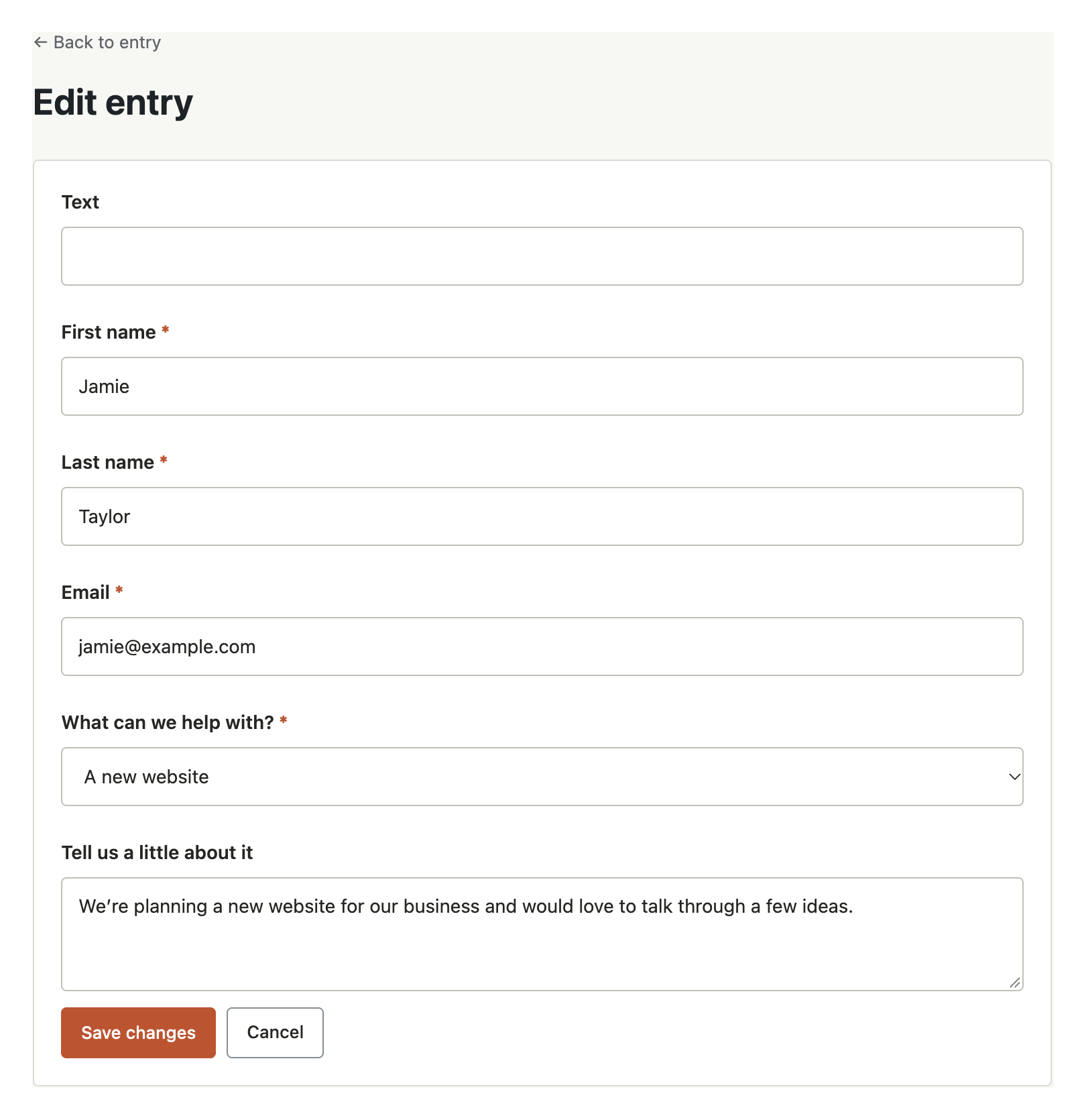
- Select Edit entry beside the Entry details heading.
- Change the supported fields. Available blank fields are included.
- Select Save changes and read any validation feedback.
- Compare the resulting values and Activity record.
The editor uses current field configuration with saved values. JavaScript is required to save changes in this dashboard editor. Cancel returns without applying the draft. Entries or forms in Trash cannot be edited here.
Supported and read-only values
| Setting | What it does |
|---|---|
| Ordinary editable fields | Update supported visible answer fields using their current controls and validation. |
| Name and Address | All parts appear, including parts disabled in the public builder. Those disabled parts are optional here and can be added, changed or cleared. |
| Hidden field type | Appears as a labeled text input so an administrator can change or clear the saved value. |
| Internal values | Remain read-only. |
| Consent and CAPTCHA | Remain read-only; the editor does not replace the original consent snapshot or recreate a visitor verification. |
| Calculated values | Remain read-only directly. Editing a supported calculation input recalculates affected results. |
| Unavailable provider | Retains a read-only representation rather than allowing an unsafe replacement. |
Edit Repeater rows
For an editable Repeater, change child answers, add a blank row after an existing row, or remove a row. Save applies the collection as one update, preserving surviving row identities and order. The configured minimum and maximum row counts still apply.
If a child is protected or unavailable, or cannot safely use this editor, the whole Repeater can be read-only. A File Upload child also makes this dashboard Repeater editor read-only. Read-only values remain visible rather than being discarded. Review errors beside the relevant child controls before saving again.
Edit File Upload values
For an editable top-level File Upload field, download an existing file, mark it for removal, use its adjacent picker to replace it, or use the final picker to add a file where allowed. The final saved list must satisfy the field's file limits.
If saving fails, original files remain and the editor asks you to select file changes and removals again. Do not assume a previously selected local file is still staged after the error. The normal protected storage and download rules still apply.
Concurrent edits and notifications
The editor checks the entry and form versions loaded when you opened it. If either changed, reopen the current entry before applying the correction; a stale page must not overwrite newer work.
Saving a value correction retains the original entry and does not automatically resend submission emails or rerun integrations. Deliberate Resend is a separate operation using current configuration and values. Front-end owner editing uses its separate add-on workflow.